IIS sites, applications and virtual directories: the four-layer model
Understand site vs application vs virtual directory vs application pool, create a lab site on 8080, and choose the isolation boundary deliberately.
- Build
- 26100.33650
- Edition
- Standard / Datacenter
- Architecture
- x64
- Support
- Documentation (E1)
- Evidence
- E1Official documentation
- Verified
- 2026-10-29
- Test machine
- IIS Manager UI reference: VM 361 Windows 11 26H2; Site Lab on :8080; Server 2025 cmdlets E1
- Page type
- Concept
The short answer
Section titled “The short answer”Four different things:
| Object | What it is | Own binding? | Own app pool? |
|---|---|---|---|
| Site | A web endpoint: binding + root + app pool | Yes | Yes |
| Application | A path segment inside a site (e.g. /shop) |
No (inherits site binding) | Yes |
| Virtual directory | A folder mapped to a URL path | No | No |
| Application pool | The worker-process boundary | No | — |
Use a site for a different hostname/port. Use an application for a separate app under the same host. Use a virtual directory only for static content that does not need its own process.
The lab site
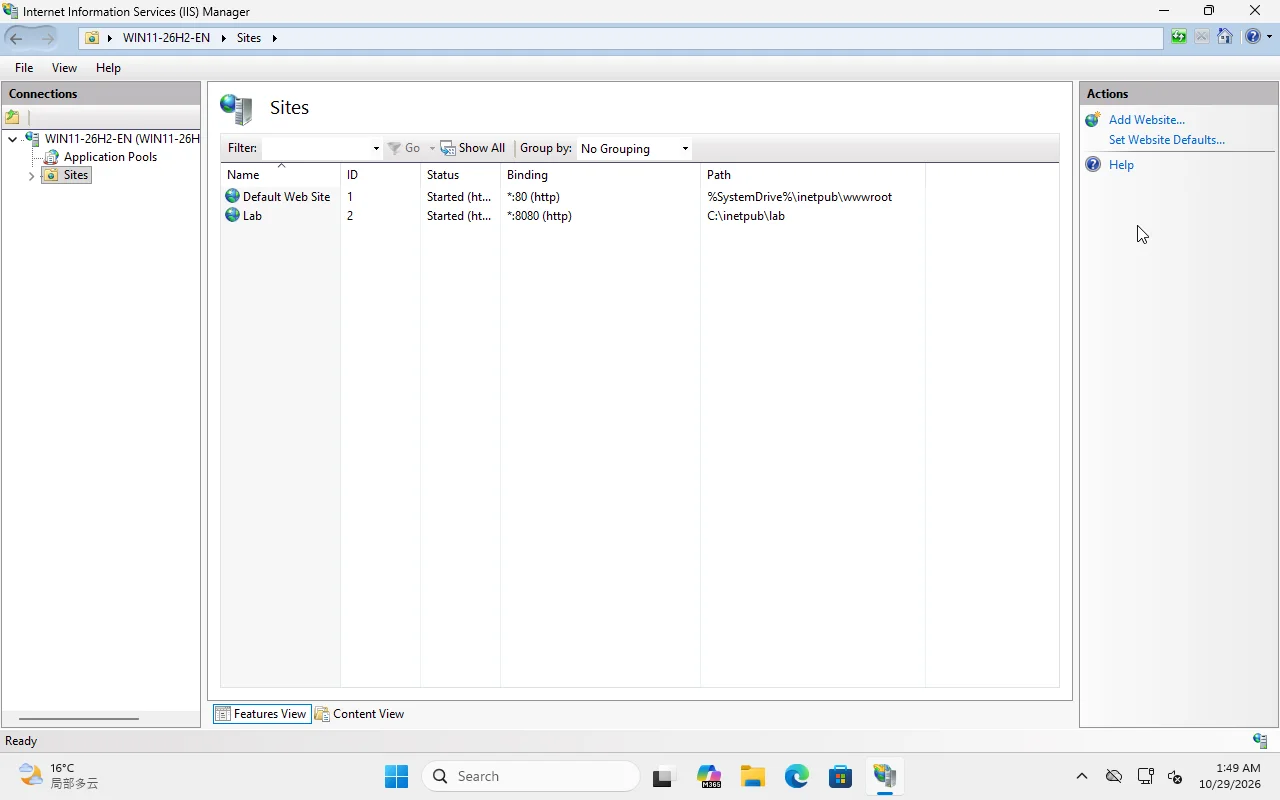
Section titled “The lab site”IIS Manager on VM 361 shows:
Default Web Site, id 1,http/*:80:Lab, id 2,http/*:8080:, rootC:\inetpub\lab, app poollabpool
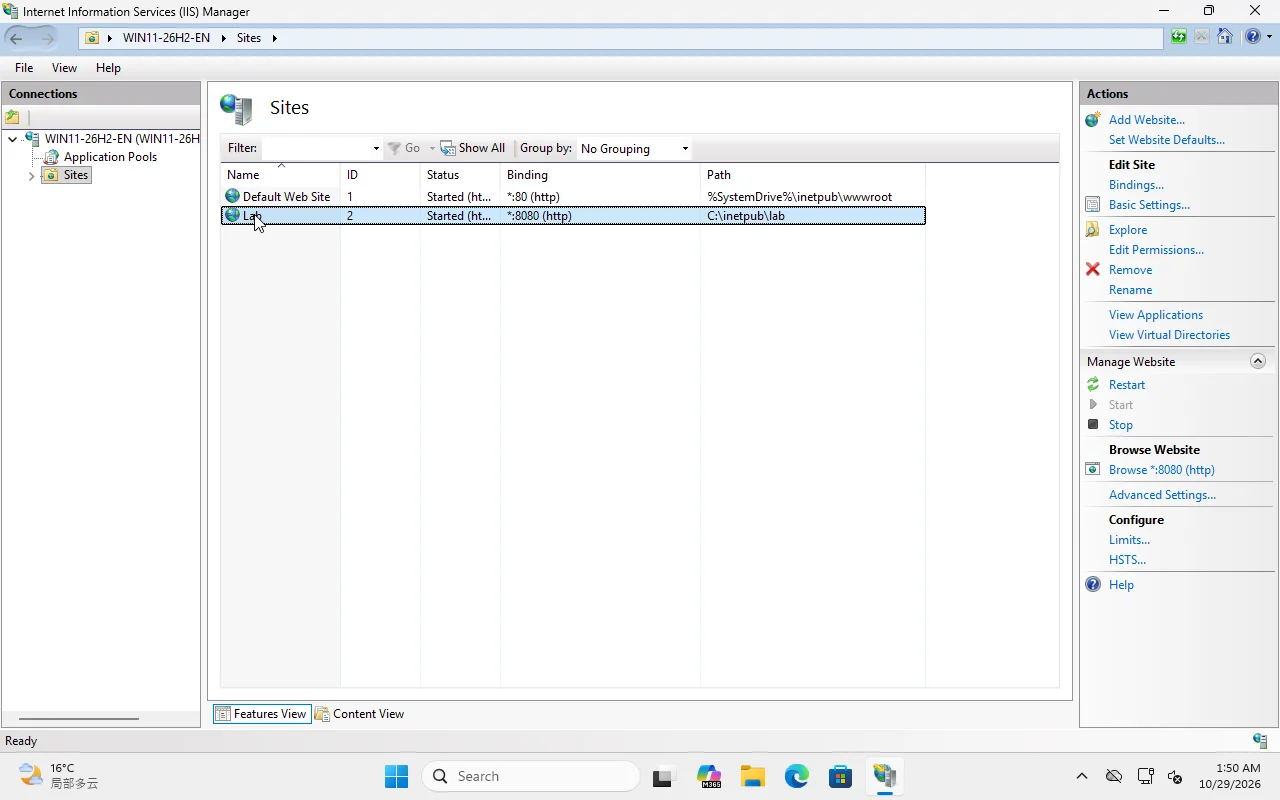
Create it with PowerShell (WebAdministration module):
Import-Module WebAdministrationNew-Item -ItemType Directory -Force C:\inetpub\lab | Out-NullNew-WebAppPool -Name 'labpool'New-WebSite -Name 'Lab' -PhysicalPath 'C:\inetpub\lab' -Port 8080 -ApplicationPool 'labpool'Or with appcmd:
appcmd add apppool /name:labpool /managedRuntimeVersion:""appcmd add site /name:Lab /physicalPath:C:\inetpub\lab /bindings:"http/*:8080:"appcmd set app "Lab/" /applicationPool:labpoolmanagedRuntimeVersion:"" means No Managed Code — correct for a static site or a reverse-proxied Node/Python app. Do not leave it on v4.0 unless the app needs .NET Framework.
Add an application
Section titled “Add an application”New-WebApplication -Site 'Lab' -Name 'shop' -PhysicalPath 'C:\apps\shop' -ApplicationPool 'shoppool'This creates http://host:8080/shop with its own app pool. The parent site’s web.config still applies unless the child overrides it. That inheritance is useful, and a common source of “it works at the root but not under /shop” bugs.
Add a virtual directory
Section titled “Add a virtual directory”New-WebVirtualDirectory -Site 'Lab' -Name 'docs' -PhysicalPath 'D:\StaticDocs'/docs maps to a folder but uses the parent application’s app pool. It is not an isolation boundary.
Verify
Section titled “Verify”Get-Website | Select-Object Name, State, PhysicalPath, ApplicationPoolGet-WebApplication -Site 'Lab'Get-WebVirtualDirectory -Site 'Lab'Invoke-WebRequest http://localhost:8080/ -UseBasicParsing | Select-Object StatusCodeThen check from another machine on the allowed network; a localhost-only test does not prove the firewall/binding is correct.
Common traps
Section titled “Common traps”- Binding conflict: two sites on the same IP:port with no host header/SNI. IIS starts one and fails the other.
- Wrong app pool: static site on
DefaultAppPoolwith .NET loaded; unnecessary surface. - Virtual directory permissions: the app pool identity needs NTFS read on the target folder, not just IIS “connect as”.
- Nested config: a parent
web.configcan block a child app; read the 500.19 error instead of deleting config. - Default site left running: it may answer requests for an unbound hostname.
Lab boundary
Section titled “Lab boundary”The UI is Windows 11 26H2. The cmdlets and object model are the same family as Server 2025, but Server-specific role installation remains E1 until a Server 2025 VM reproduces it.