Memory integrity (HVCI): what it costs, and when to keep it on
Measured HVCI on/off on Windows 11 26H2: CPU encryption, compression and memory bandwidth, plus how to verify VBS status and handle incompatible drivers.
- Build
- 26300.9457
- Edition
- Pro (26H2)
- Architecture
- x64
- Support
- Lab (HVCI measured)
- Evidence
- E2Reproduced in the lab, measured in a passthrough VM
- Risk
- R1Reversible setting
- Verified
- 2026-10-28
- Test machine
- PVE 9.2.2 VM 361; Windows 11 Pro 26H2 26300.9457; 4 vCPU/8GB; CPU host; HVCI off vs on; WinSAT 3 runs each
- Page type
- Measured tweak
The short answer
Section titled “The short answer”Memory integrity is Microsoft’s user-facing name for HVCI (Hypervisor-Enforced Code Integrity), one of the services that can run under VBS (Virtualization-Based Security). It protects kernel-mode code and drivers from tampering by running code-integrity checks in a hypervisor-isolated secure kernel.
In this lab, turning HVCI on did not produce a repeatable slowdown in three synthetic CPU/memory workloads:
| Assessment (3 runs, median) | HVCI off | HVCI on | Difference |
|---|---|---|---|
| CPU AES256 encryption | 4245.6 MB/s | 4246.3 MB/s | +0.02% |
| CPU LZW compression | 457.7 MB/s | 461.3 MB/s | +0.78% |
| Memory bandwidth | 33878.6 MB/s | 34033.8 MB/s | +0.46% |
The differences are smaller than the run-to-run spread. The positive signs are noise, not evidence that HVCI makes the CPU faster.
Verdict: keep Memory Integrity on by default. The measured CPU/memory cost here is below noise, while the kernel security boundary is real. Turn it off only for a named driver incompatibility or a reproducible regression in the workload you actually use.
VBS is not the same thing as HVCI
Section titled “VBS is not the same thing as HVCI”This distinction causes most of the bad advice online:
| Layer | What it is | How to see it |
|---|---|---|
| VBS | The hypervisor-isolated secure environment | VirtualizationBasedSecurityStatus = 2 means VBS is running |
| HVCI | One VBS service: kernel/driver code-integrity checks | SecurityServicesRunning contains 2 |
| Credential Guard | Another VBS service: protects derived credentials | SecurityServicesRunning contains 1 |
| System Guard | Another VBS service: boot/system integrity | SecurityServicesRunning contains 3 |
A machine can report VBS running while HVCI is off. That was the lab baseline:
VirtualizationBasedSecurityStatus : 2SecurityServicesConfigured : {0}SecurityServicesRunning : {0}{0} means no VBS security service was active. After enabling Memory Integrity:
VirtualizationBasedSecurityStatus : 2SecurityServicesConfigured : {2}SecurityServicesRunning : {2}Now HVCI is actually running.
What HVCI protects — and what it does not
Section titled “What HVCI protects — and what it does not”HVCI:
- checks kernel-mode code pages before they execute;
- makes it harder for a vulnerable driver or kernel exploit to run unsigned/modified code;
- blocks known-vulnerable drivers through Microsoft’s vulnerable driver blocklist;
- is a kernel/driver security feature, not an antivirus and not a user-mode sandbox.
It does not:
- stop phishing, malicious documents or browser exploits;
- replace Secure Boot, TPM, Windows Update or SmartScreen;
- guarantee that a driver is safe just because it is signed;
- make a game faster.
The real cost is usually compatibility, not raw CPU throughput: an old anti-cheat, overclocking/fan/RGB utility, VPN/firewall filter, emulator or capture driver may be blocked or unstable. That is a concrete reason to leave Memory Integrity off on a specific machine; “more FPS” is not, unless you measured it.
Check your current state
Section titled “Check your current state”Get-CimInstance -Namespace root\Microsoft\Windows\DeviceGuard -ClassName Win32_DeviceGuard | Select-Object VirtualizationBasedSecurityStatus, SecurityServicesConfigured, SecurityServicesRunning, CodeIntegrityPolicyEnforcementStatusExpected: You can tell VBS status and whether HVCI (2) is in SecurityServicesRunning.
Interpretation:
| Value | Meaning |
|---|---|
VirtualizationBasedSecurityStatus = 0 |
VBS off |
= 1 |
VBS enabled but not running |
= 2 |
VBS running |
SecurityServicesRunning contains 2 |
HVCI is running |
SecurityServicesRunning does not contain 2 |
HVCI is off, even if VBS is running |
msinfo32 also shows “Virtualization-based security” lines, but the DeviceGuard object is more precise because it separates VBS from each service.
Turn Memory Integrity on
Section titled “Turn Memory Integrity on”Normal Windows 11 path:
- Open Windows Security.
- Go to Device security → Core isolation details.
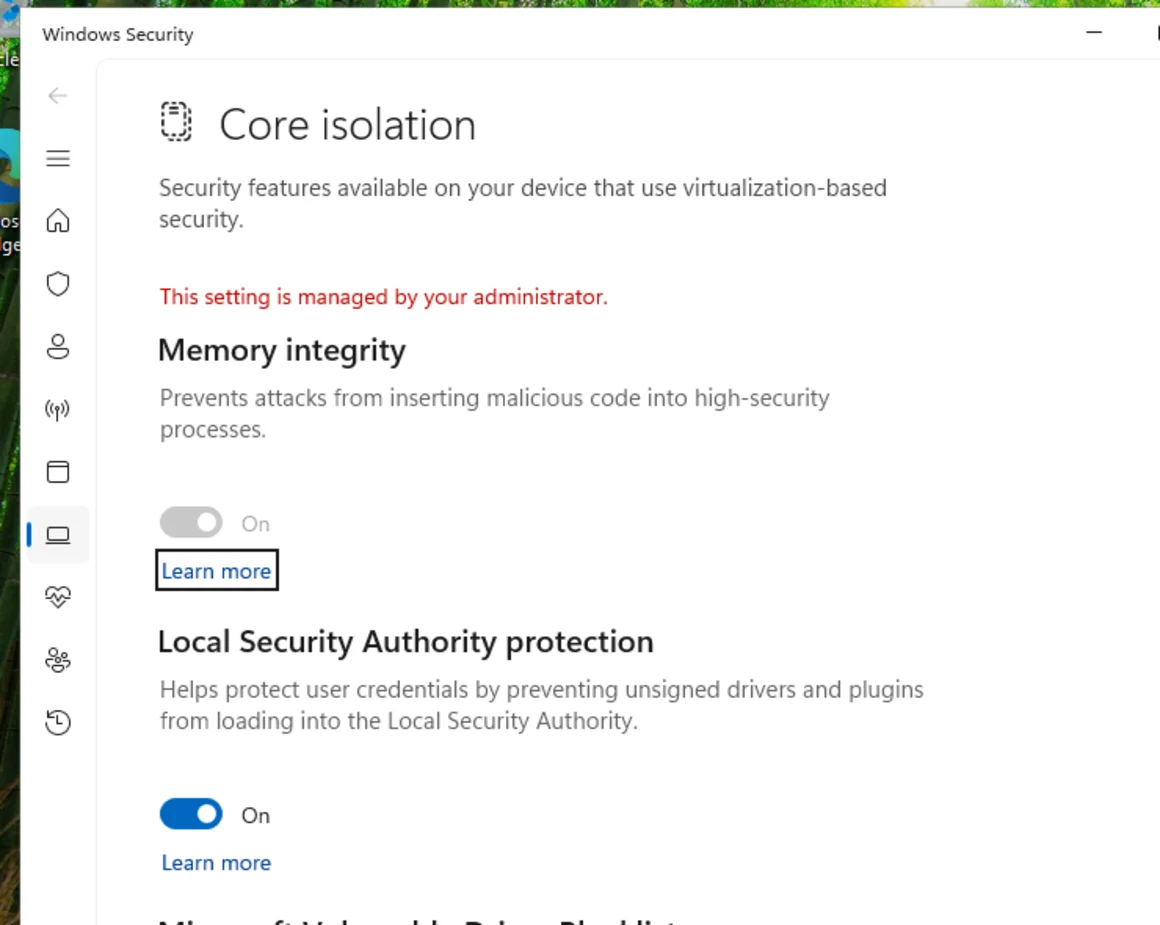
- Turn Memory integrity on.
- Reboot.
Expected: Memory integrity is On; Windows asks for a reboot.
After the reboot, run the DeviceGuard command again. SecurityServicesRunning must contain 2; a green UI toggle alone is not proof that the service started.
For a lab or managed test machine, the equivalent policy is:
$dg = 'HKLM:\SYSTEM\CurrentControlSet\Control\DeviceGuard'New-ItemProperty $dg -Name EnableVirtualizationBasedSecurity -PropertyType DWord -Value 1 -ForceNew-ItemProperty $dg -Name RequirePlatformSecurityFeatures -PropertyType DWord -Value 1 -Force
$hvci = Join-Path $dg 'Scenarios\HypervisorEnforcedCodeIntegrity'New-Item -Path $hvci -ForceNew-ItemProperty $hvci -Name Enabled -PropertyType DWord -Value 1 -Force
bcdedit.exe /set '{current}' hypervisorlaunchtype auto# reboot
RequirePlatformSecurityFeatures = 1 requires Secure Boot; 3 would require Secure Boot plus DMA protection. Use the value your platform actually supports.
To turn it off again, set the HVCI Enabled value to 0 and reboot. Do that only after reading the trade-off below.
What the lab measured
Section titled “What the lab measured”Method:
- Same VM 361, Windows 11 Pro 26H2
26300.9457, 4 vCPU / 8GB, CPUhost. - HVCI off (
{0}) vs on ({2}), each with 3 runs. winsat cpu -encryption,winsat cpu -compression,winsat mem; XML metrics parsed directly.- Idle guest, same host and time window; no GPU workload.
Results (median of 3):
| Assessment | HVCI off | HVCI on | On vs off |
|---|---|---|---|
| CPU AES256 encryption (MB/s) | 4245.6 | 4246.3 | +0.02% |
| CPU LZW compression (MB/s) | 457.7 | 461.3 | +0.78% |
| Memory bandwidth (MB/s) | 33878.6 | 34033.8 | +0.46% |
Run ranges:
| Assessment | Off | On |
|---|---|---|
| AES256 | 4237.6–4256.1 | 4221.7–4249.8 |
| LZW | 455.5–459.4 | 453.3–463.0 |
| Memory | 33828.2–33955.2 | 34033.8–34347.0 |
The on/off differences are inside the spread. The honest conclusion is:
No repeatable CPU or memory-bandwidth penalty was detected in these three synthetic workloads on this VM. That does not prove HVCI is free in games, drivers or boot.
Measure it on your own machine
Section titled “Measure it on your own machine”Do not trust a single run, and do not compare different power modes, GPU drivers or background loads.
winsat cpu -encryption -xml $env:TEMP\enc-off.xmlwinsat cpu -compression -xml $env:TEMP\comp-off.xmlwinsat mem -xml $env:TEMP\mem-off.xmlRepeat 3 times. winsat needs an interactive desktop session; it exits 24 when run as SYSTEM without DWM.
Expected: Three non-zero XML results; record the medians.
winsat cpu -encryption -xml $env:TEMP\enc-on.xmlwinsat cpu -compression -xml $env:TEMP\comp-on.xmlwinsat mem -xml $env:TEMP\mem-on.xmlExpected: SecurityServicesRunning contains 2; the same three assessments produce new XML files.
For a real workload, measure frame time and 1% low, not only average FPS, and change one variable at a time. A 1–2% benchmark difference is usually noise; a repeatable 10% drop with the same scene is worth investigating.
Keep it on, or turn it off?
Section titled “Keep it on, or turn it off?”Keep Memory Integrity on if:
- the PC is used for banking, work, development or anything where kernel-level malware matters;
- all your drivers and anti-cheat work with it on;
- you have no reproducible, measured regression in your actual workload.
Consider turning it off only if:
- Windows Security names a specific incompatible driver and no update exists;
- a required anti-cheat, VM, capture or hardware utility fails with HVCI on;
- you have a reproducible before/after regression in the workload you actually use, not a single synthetic score;
- the machine is a lab/bench VM where the security trade-off is acceptable.
If you turn it off, record why and re-enable it after the driver/vendor fix. “FPS went up” without a controlled measurement is not a reason to disable a kernel security boundary.
Troubleshooting
Section titled “Troubleshooting”| Symptom | Likely cause | First move |
|---|---|---|
| Toggle is grey / “managed by your administrator” | Group Policy, Intune or registry policy | Check gpresult /h; ask the admin; do not bypass management |
VBS shows running, but HVCI is not in SecurityServicesRunning |
HVCI scenario Enabled is missing/0, or the reboot did not complete |
Set the HVCI policy, reboot, re-check for {2} |
| Memory Integrity cannot turn on | Secure Boot/TPM/virtualization unavailable, or a driver blocks it | Check firmware, Confirm-SecureBootUEFI, Get-Tpm; review Windows Security’s driver list |
| Boot loop or blue screen after enabling | Incompatible driver or firmware | Boot Safe Mode / roll back the snapshot; do not keep forcing the toggle |
| “Memory integrity is off” with a driver warning | Windows found an incompatible driver | Update/remove that driver first; disabling HVCI is the last resort |
| WSL2/Hyper-V stops working | Usually unrelated to HVCI; check Virtual Machine Platform and nested virtualization | Re-check wsl --status; in a VM, expose virtualization to the guest |
| Performance feels worse | Expectation bias, background load, GPU driver, or a real regression | Repeat the same workload 3 times; compare frame time, not one FPS number |
What this page verified
Section titled “What this page verified”| Claim | Evidence |
|---|---|
HVCI off → on changes SecurityServicesRunning from {0} to {2} |
E2, DeviceGuard on VM 361 |
| CPU AES256, LZW and memory bandwidth medians | E2, 3 runs each, XML metrics |
| No repeatable penalty in those three synthetic workloads | E2, differences within run range |
| Memory Integrity UI shows On | E2, Windows Security screenshot |
| WSL2/Ubuntu still starts with HVCI on | E2, whoami=dev, kernel 6.18; nested-VM warning present |
| Game FPS/frame time, boot time, driver compatibility, battery | Not tested |
| HVCI improves performance | Not claimed; the small positive deltas are noise |
Related pages
Section titled “Related pages”- Measure gaming performance before you tweak — frame time and 1% low, not just average FPS.
- WSL2 + Dev Drive on D: — WSL2 still starts with HVCI on in this lab.
- First 10 minutes on a new Windows 11 PC — security defaults before tuning.
Related
Section titled “Related”- Virtualisation flags: VT-x, IOMMU, SLAT and nested support — what the firmware must expose before HVCI/WSL2 work.
- P/E hybrid cores and the Windows scheduler — why background work lands on E-cores.